

How to Add a Custom Domain to Your vCard or Store?
1. Access Your DNS Management
Log in to your domain registrar's account (such as GoDaddy, Namecheap, Bluehost, or Cloudflare) and open the DNS Management section for the domain you want to connect.
2. Add a CNAME Record
Create a new CNAME record with the following details:
| CNAME | @ | mercadopago-rec.goapps.co.in | DNS Only | Auto |
- Host: @ (Represents the root domain.)
- Value: mercadopago-rec.goapps.co.us
- Proxy Status: DNS Only
- TTL: Auto (or your preferred value)
If you're using Cloudflare , refer to the following guide:
Cloudflare DNS-instellingen
Configureer Cloudflare DNS-records en pagina-regels
1. Setting Up Cloudflare DNS Records
Log in bij Cloudflare
- Visit the Cloudflare dashboard and log in to your account.
Kies uw domein
- Selecteer het domein dat u wilt configuren.
DNS-records toevoegen
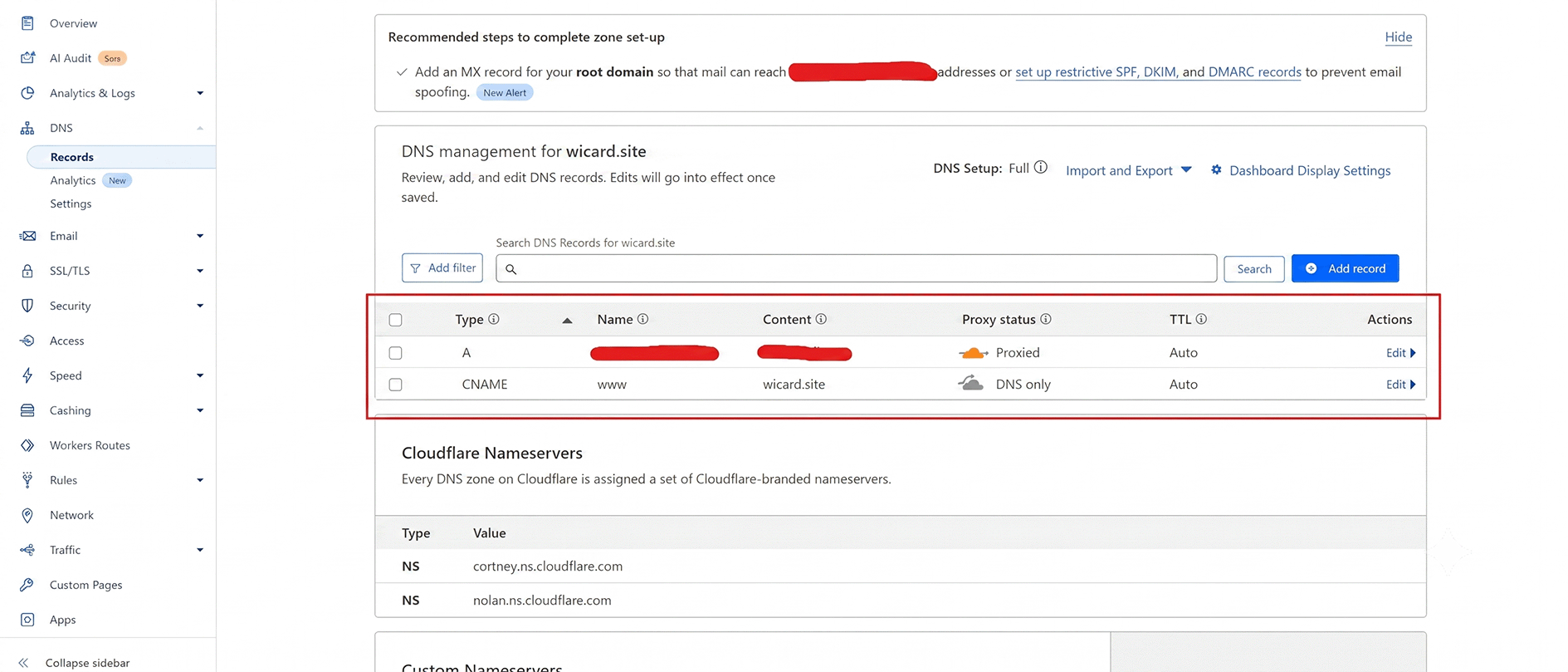
- Go to the DNS tab and click Add Record to add the necessary DNS entries.
| A. | @ (root domain) | Enter your server’s IP address | Enabled (orange cloud icon) | Auto |
| CNAME | www | mercadopago-rec.goapps.co.in | Disabled (gray cloud icon) | Auto |
- Bewaar elk record nadat je de details hebt ingevoerd.
DNS Record Example:
2. Creating Page Rules
Ga naar Pagina-regels
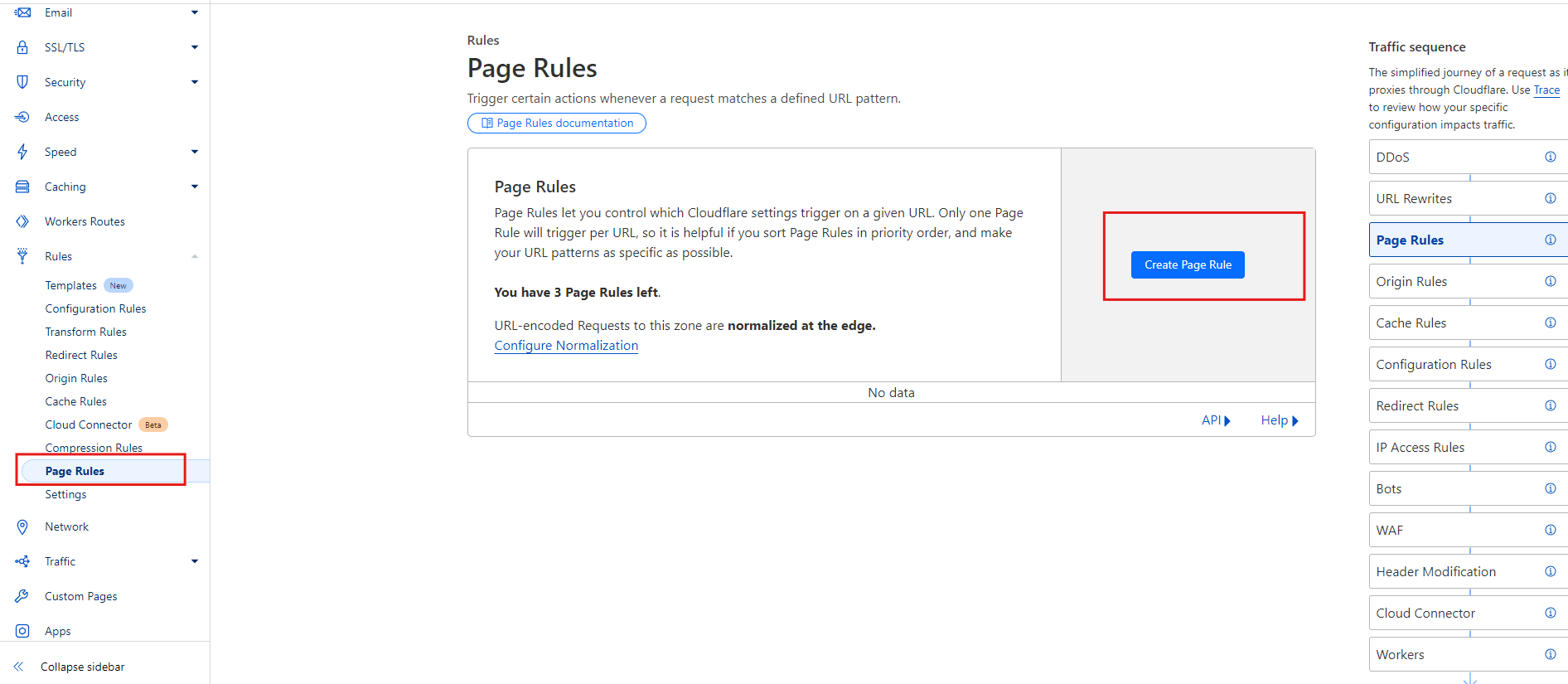
- Go to the Page Rules tab on your domain's dashboard.
Voeg een nieuwe pagina regel toe
- Click Create Page Rule and configure rules as needed.
Voorbeeld Pagina regels:
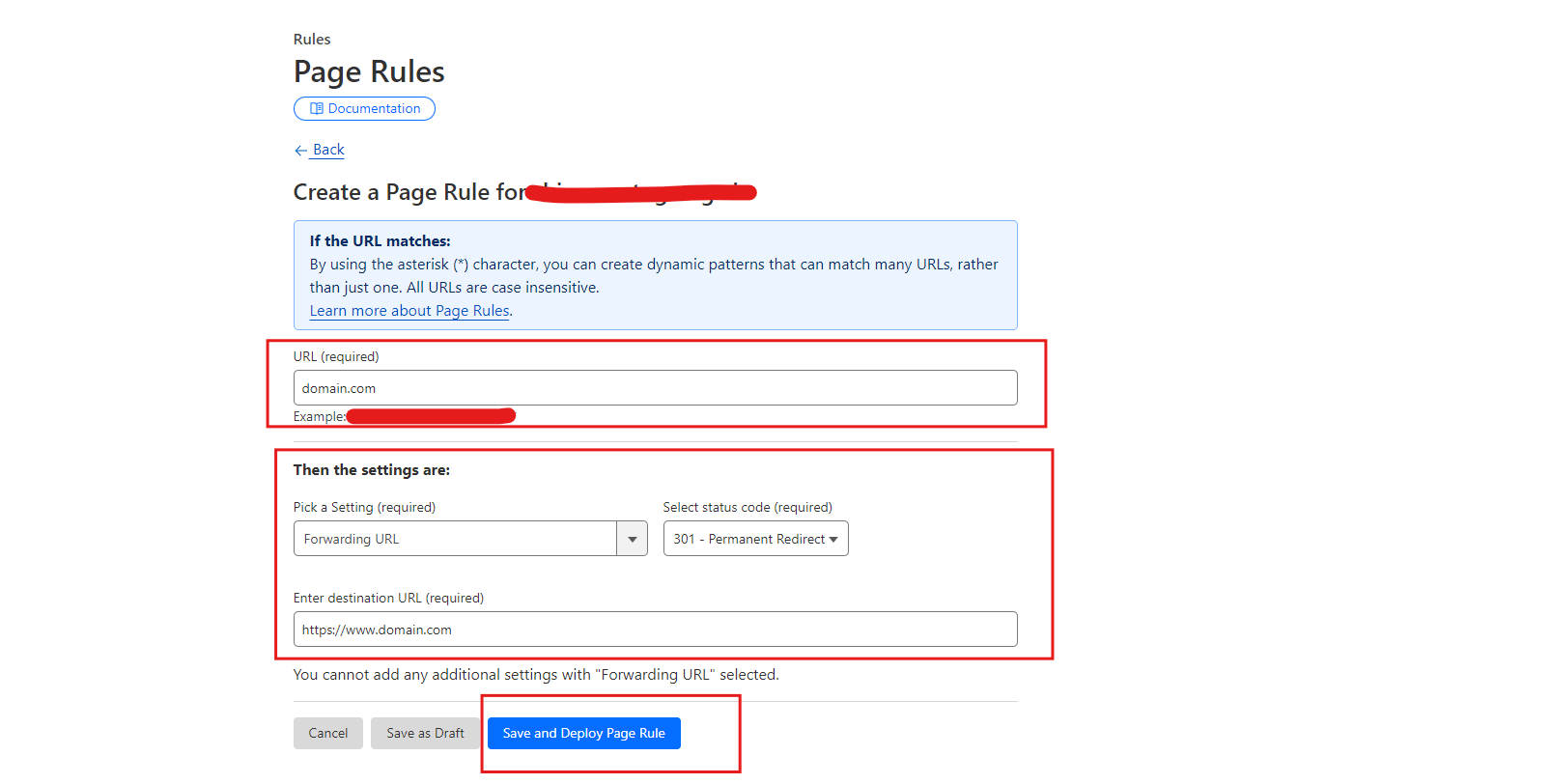
Voorbeeld Pagina-regel Configuraties:
| example.com | URL's voor doorstuur | 301 Permanente herleidingen | https://www.example.com |
Voorbeeld Redirect:
HTTPS altijd gebruiken
| example.com/ | HTTPS altijd gebruiken |
Click Bewaar en gebruik to activate the rule.
Tip: Page rules are applied in order from top to bottom. Arrange them carefully based on priority. Use wildcards (*) for broader rule coverage, like *example.com/* to cover all pages.
3. Save the DNS Record
Save the CNAME record in your DNS management panel.
Opmerking
DNS changes may take some time to propagate, depending on your domain provider.
4. Configure Your vCard or Store
After adding the DNS record, enter your custom domain (for example, yourdomain.com) in your vCard or Store settings and submit the request.
5. Domain Verification
Once you submit the custom domain request, it will be sent to the website administrator for approval.
The administrator will verify your DNS configuration and assign the custom domain to your vCard or Store. Until then, the request will remain in the Verwerking status.
Belangrijke opmerking
The steps for adding a CNAME record may vary depending on your domain registrar or DNS provider. If you have any difficulty, refer to your provider's documentation or contact their support team for assistance.
Pager