

How to Create a WiCard Account
Step-by-Step Registration Guide
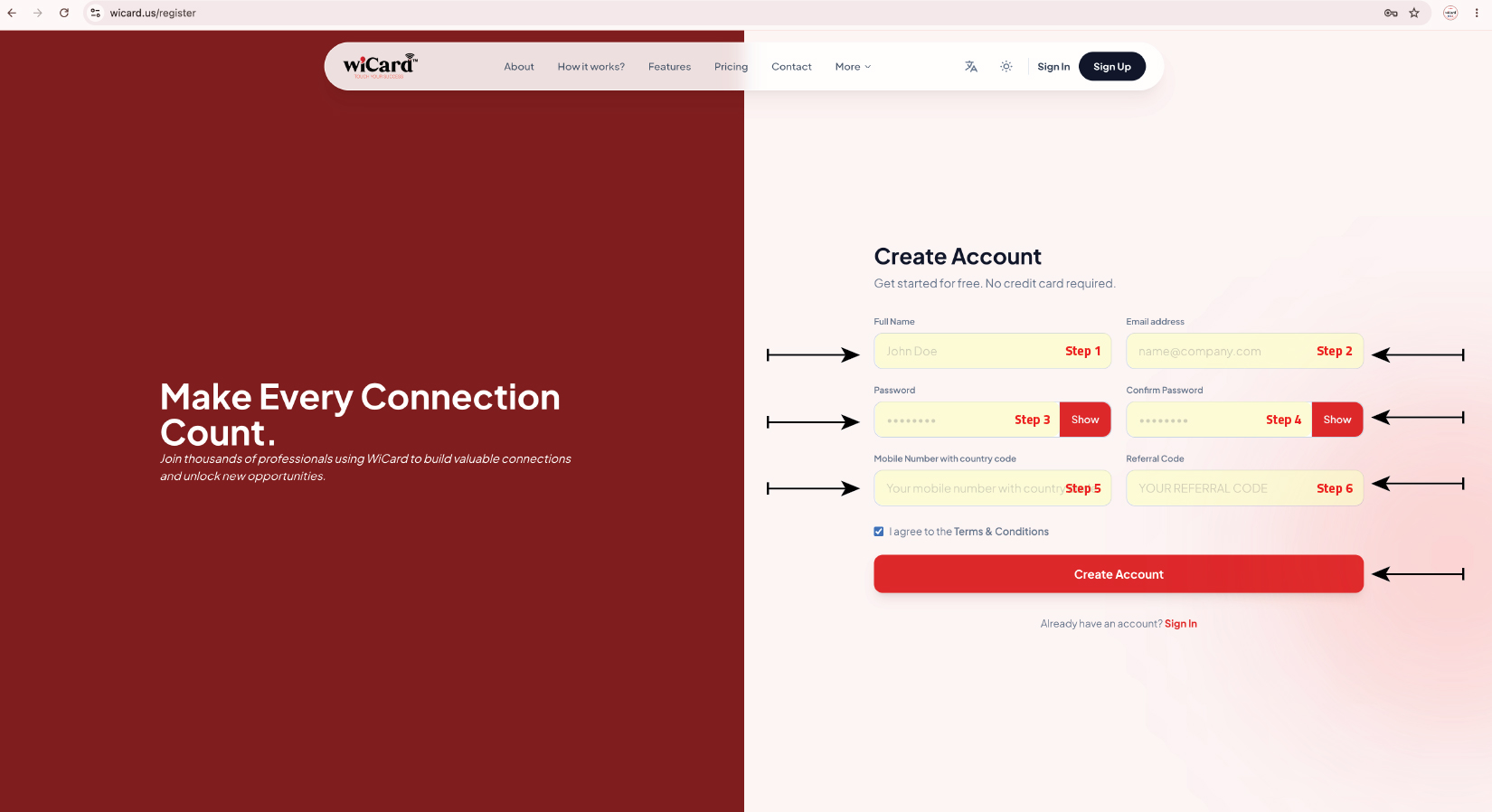
Create Your WiCard Account in Minutes
Follow these simple steps to create your WiCard account and start building your professional digital profile.
Step 1: Open the Registration Page
Visit the WiCard registration page and click Înscrieți-vă .
Step 2: Enter Your Full Name
In the Numele complet field, enter your complete name as you would like it to appear on your digital profile.
Example:
John Smith
Step 3: Enter Your Email Address
Provide a valid email address that you can access.
Example:
name@company.com
Important:
- Use a real email address.
- Ensure the email is typed correctly.
- This email may be used for account notifications and password recovery.
Step 4: Create a Secure Password
Enter a strong password in the Parolă field and re-enter it in Confirmați parola .
Recommended Password Rules:
- Minimum 8 characters
- Include uppercase letters
- Include lowercase letters
- Include numbers
- Include special characters
Example:
WiCard@2026
Step 5: Enter Your Mobile Number
In the Mobile Number with Country Code field, enter your phone number including the country code.
Examples:
Saudi Arabia:
+966512345678
United Arab Emirates:
+971501234567
United States:
+12025550123
Step 6: Enter Referral Code (Optional)
If you received a referral code from a partner, reseller, or another WiCard user, enter it in the Cod de trimitere field. Otherwise, you may leave it blank.
Step 7: Accept Terms & Conditions
Read and check the box:
☑ I agree to the Terms & Conditions
This step is required before creating your account.
Step 8: Click "Create Account"
After verifying all information is correct, click:
Create Account
Your WiCard account will be created successfully.
How to Sign In to Your WiCard Account
Step-by-Step Login Guide
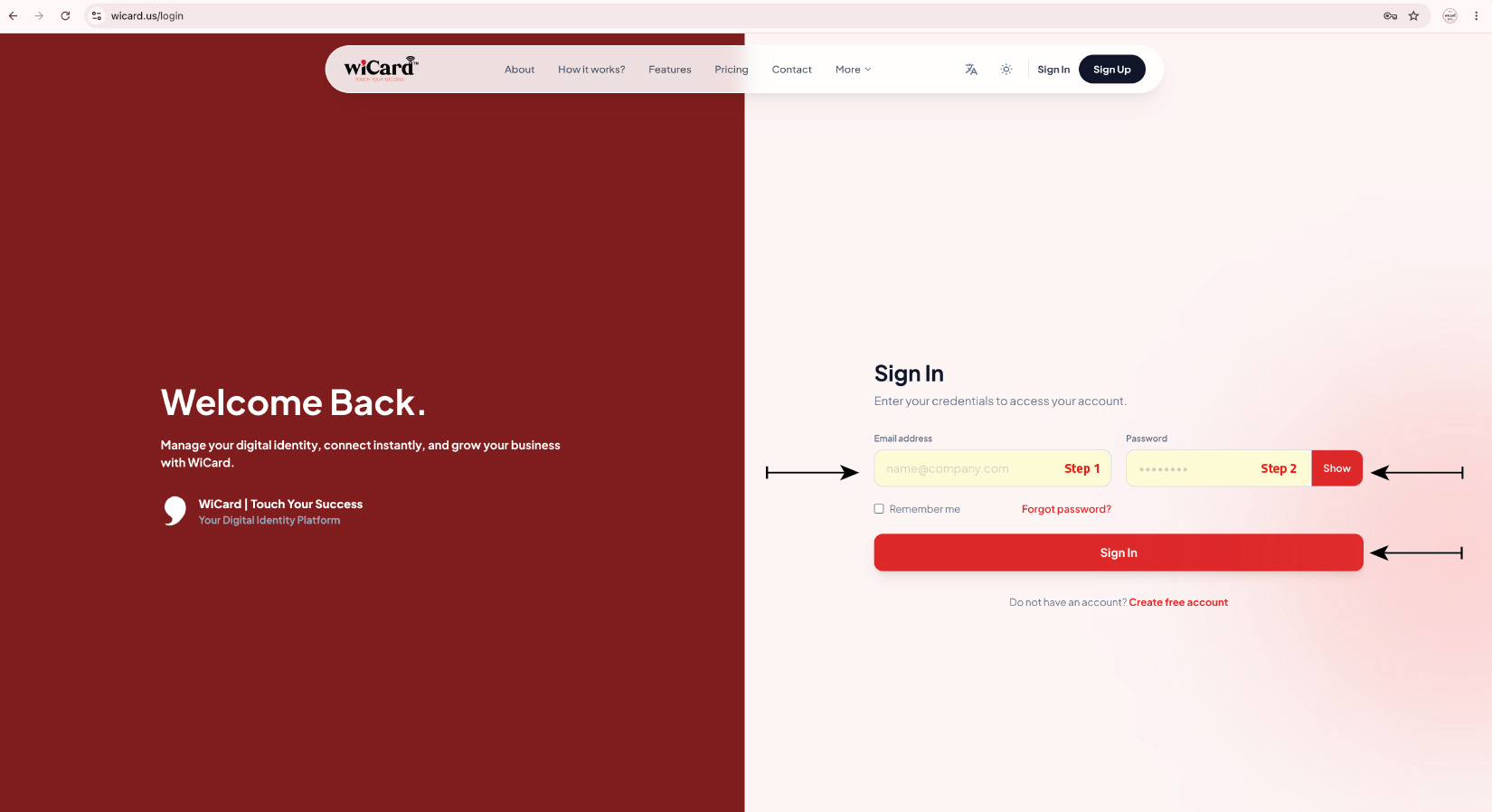
Sign In to Your WiCard Account
Access your WiCard account in just a few simple steps.
Step 1: Open the Login Page
Go to the WiCard Sign In page.
Step 2: Enter Your Email Address
In the Adresa de e-mail field, enter the email address associated with your WiCard account.
Example:
name@company.com
Step 3: Enter Your Password
In the Parolă field, enter your account password.
You can click Show to view the password while typing.
Step 4: Remember Me (Optional)
Check Remember me if you want WiCard to keep you signed in on your device.
⚠️ Only use this option on your personal devices.
Step 5: Click "Sign In"
Click the Conectare button to access your account dashboard.
Common Login Issues
Incorrect Email or Password
Solution:
- Verify your email address.
- Check for typing mistakes.
- Make sure Caps Lock is turned off.
Account Not Found
Solution:
- Confirm you are using the email address used during registration.
- If you don't have an account yet, click Create Free Account .
Password Reset Email Not Received
Solution:
- Check your Spam or Junk folder.
- Verify that you entered the correct email address.
- Wait a few minutes and try again.
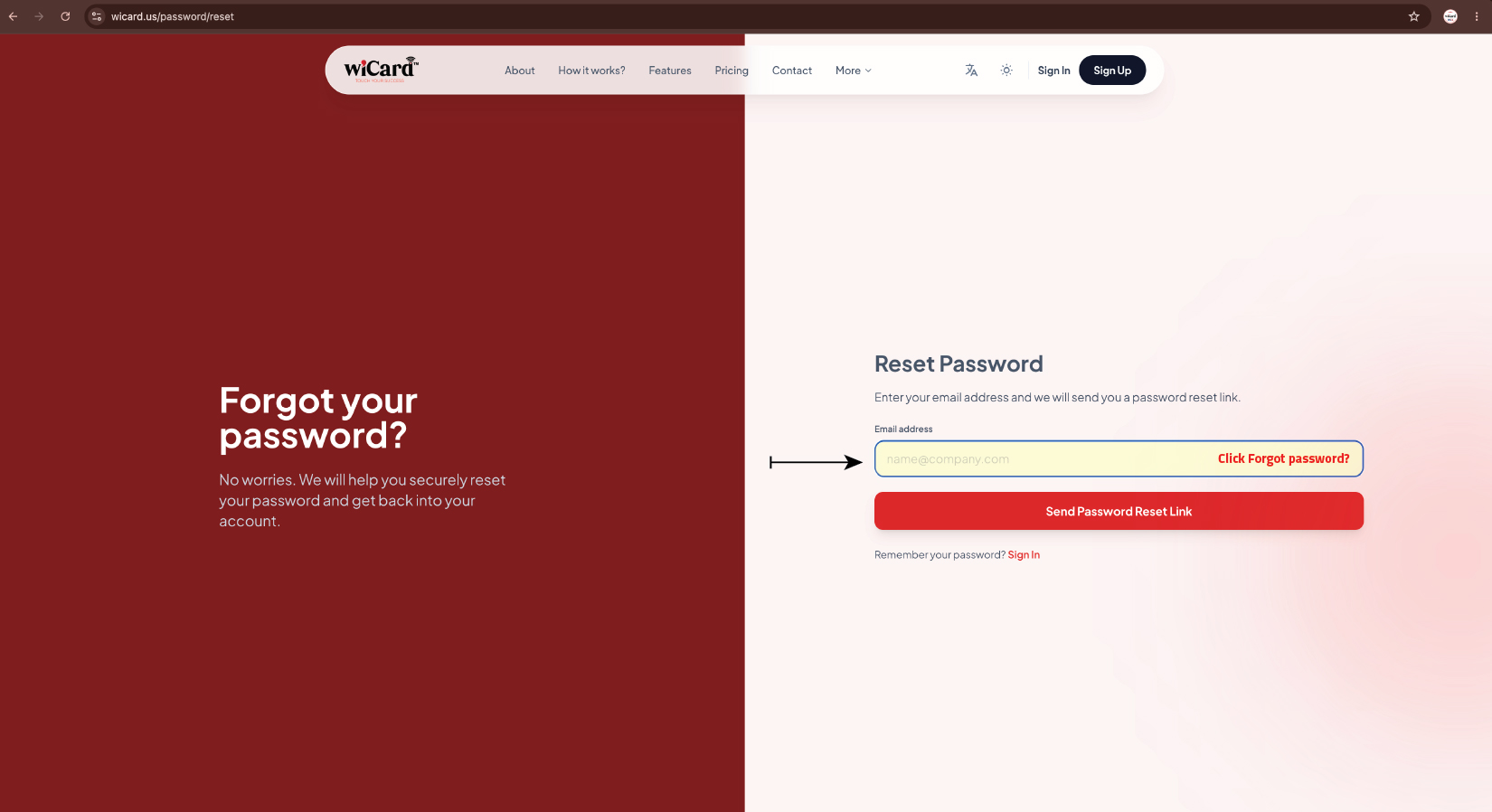
Ați uitat parola?
If you cannot remember your password:
- Click Forgot password?
- Enter your registered email address.
- Follow the instructions sent to your email.
- Create a new password.
- Return to the login page and sign in.
Common Login Issues
Incorrect Email or Password
Solution:
- Verify your email address.
- Check for typing mistakes.
- Make sure Caps Lock is turned off.
Account Not Found
Solution:
- Confirm you are using the email address used during registration.
- If you don't have an account yet, click Create Free Account .
Password Reset Email Not Received
Solution:
- Check your Spam or Junk folder.
- Verify that you entered the correct email address.
- Wait a few minutes and try again.